 EZ Prompt
Getting started
Your first show, in six steps
EZ Prompt runs in the browser. You write and control the script on one screen, and read it on another: a laptop, a tablet, or the screen under prompter glass. Nothing to install.
-
Sign in
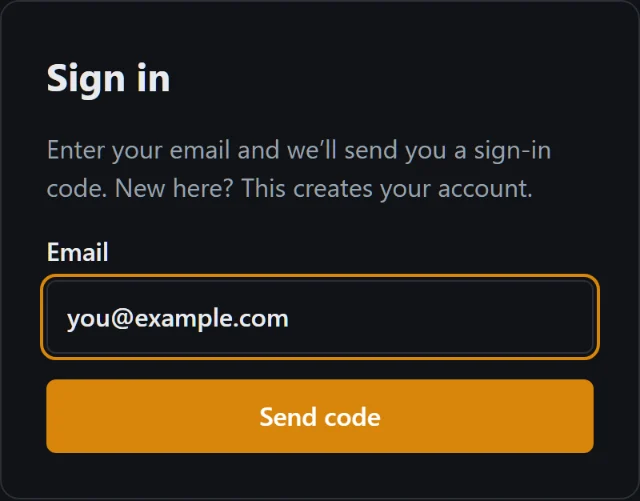
Open dash.ezprompt.app on the computer you'll run the show from. Choose Continue with Google, or enter your email and choose Send code: we email you a 6-digit code to type in. A new email address creates your account; the Free plan needs no card.
-
Bring your script
You land on the controller. Type or paste your script into the box on the left, or import a Word document with the .docx upload button (or from Google Docs, with Pro). Then choose Send to prompter: the preview on the right shows what every screen will show.
Lines that are only for you, like cues and reminders, can be notes: select them and press Alt N. Notes stay in your script but never reach the prompter.
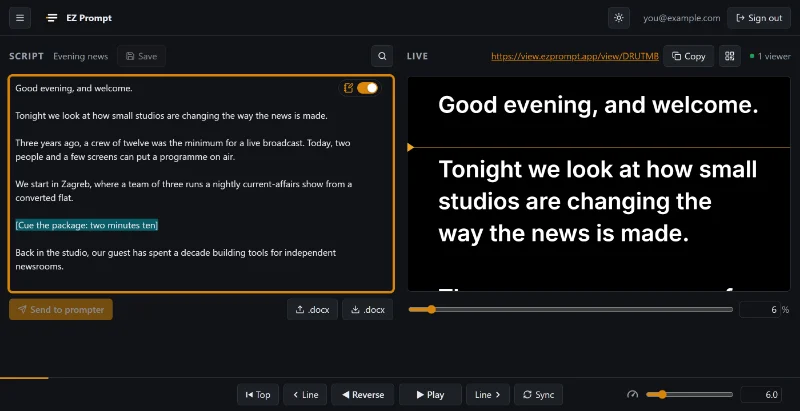
The controller: your script on the left (the highlighted line is a note), the live preview on the right, and playback along the bottom. -
Open it on the screen you read from
Above the preview is your viewer link. Open it on the screen you'll read from: copy it with Copy, or choose the QR button and scan the code with that device's camera. The screen doesn't need to sign in. Press F there for full screen.
Reading through prompter glass? Mirror the text on that screen with H Pro. Each screen can be set up on its own, so the director's monitor still reads normally.
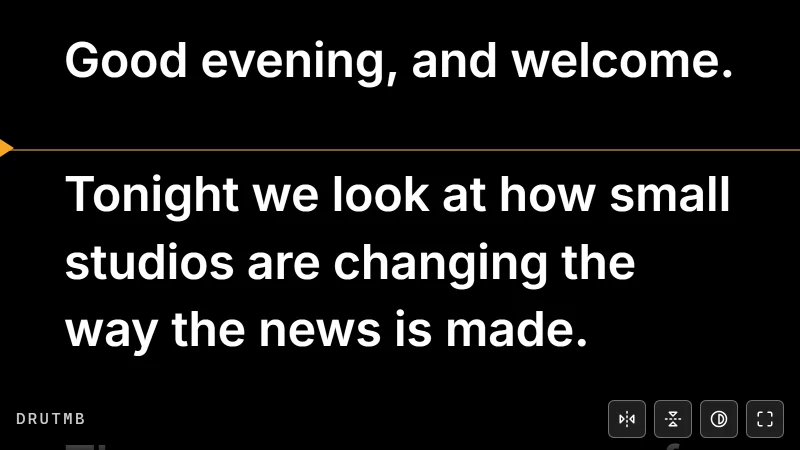
A screen, with its own toolbar at the bottom right (mirror, invert, full screen). Move the mouse or tap to show it. -
Press play
Press Space (or ▶ Play) to start, and again to pause. ↑ and ↓ change the speed; ← and → move a line back or forward; Home goes back to the top. Read the line next to the amber arrow: that's the reading line, and you can move it in Appearance.
A presenter clicker or foot pedal works too: set its buttons in the menu, under Clicker & remote keys.
-
Hand someone the remote Pro
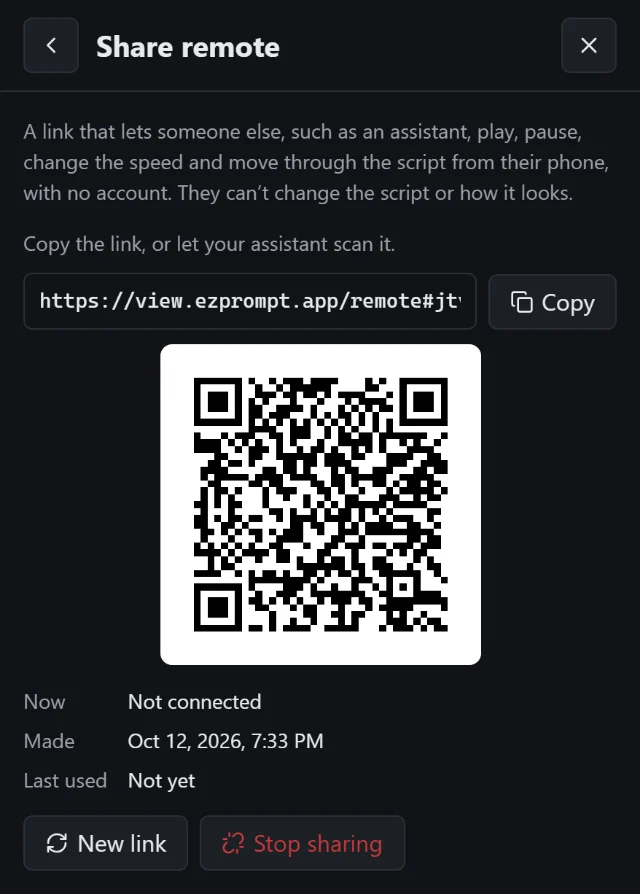
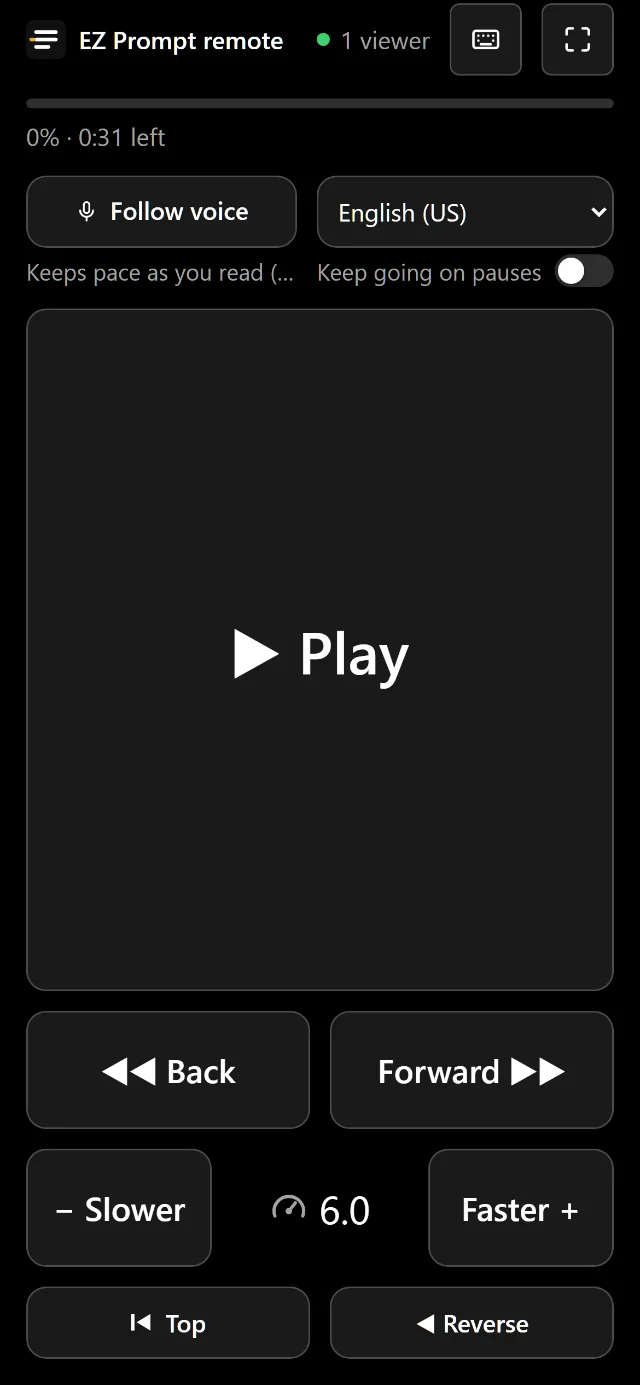
In the menu, choose Share remote, then Create link. Whoever opens the link on their phone can play, pause, change the speed and move through the script, with no account. They can't change the script or how it looks.
Reading alone? Open the remote on your own phone and turn on Follow voice: the prompter listens and keeps pace as you read.
-
Save your script
Give the script a name by choosing its title above the box, then press Ctrl S (⌘ S on a Mac) or Save. Your saved scripts are in the menu, under Script library. Free keeps three; Pro keeps up to 500.
Even unsaved, your work in the script box is kept in this browser, so a reload or a closed tab doesn't lose it.
Where next
- Make it easy to read Font, size, spacing, margins and the reading line.
- Set up your screens Mirroring for glass, inverted colours, full screen.
- Follow voice Let the prompter keep pace with you as you read.
- Clickers and pedals Choose which button does what.
Everything else is in the user guide. Questions? Write to support@ezprompt.app.