 EZ Prompt
User guide
How EZ Prompt works
Everything the prompter does, and where to find it. New here? The six-step getting started is the quickest way in.
How it works
EZ Prompt has three parts, all in the browser:
- The controller, at dash.ezprompt.app: where you write the script, set how it looks and run playback. You sign in to use it.
- Screens (viewers): any device that opens your viewer link shows the script and scrolls in step with the controller. A screen doesn't sign in.
- The phone remote Pro: a link you share, so someone else can run playback from their phone, or the prompter can follow your voice.
Your account has one prompter session, with a six-character code that's part of the viewer link. Opening the app always takes you to it. Text size and margins are measured as a share of each screen's width, so a phone, a laptop and a large monitor all break the lines in the same places and stay on the same line.
A session with nothing connected for 12 hours is closed, and the next time you open the app you get a new session with a new code. Viewer links from before then stop working; copy the new one from the controller. Your saved scripts, and a shared remote link, carry on as they are.
Signing in
There are two ways in:
- Continue with Google. We receive only your email address and Google account ID.
- Email code: enter your email and choose Send code. We email you a 6-digit code, which works for 10 minutes; it signs you in as soon as you type or paste it. If it doesn't arrive, check your spam folder, then use Resend code (you can ask for a new one once a minute).
Both ways lead to the same account when the email address is the same. A new email address creates an account on the Free plan. You stay signed in on that browser for 30 days, and every visit extends that. Sign out is at the top right of the controller (in the menu on a narrow screen); signing out pauses the prompter on every screen.
Your script
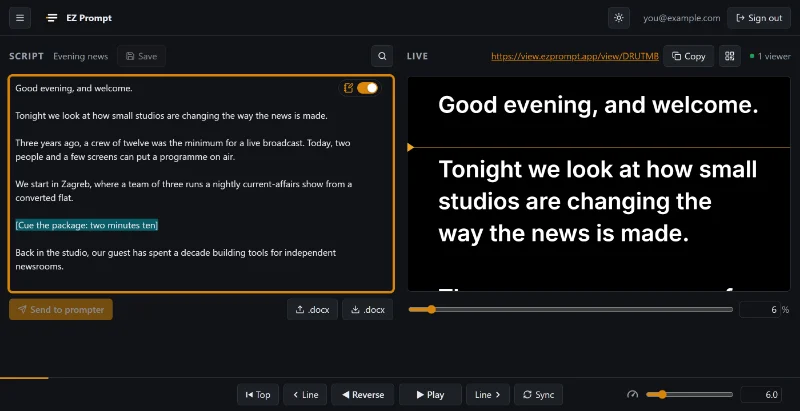
The Script panel on the left of the controller is where you write. It's plain text: type, paste, or import.
Sending it to the prompter
What you type isn't shown on the screens until you choose Send to prompter. That way you can edit during a show without the text jumping under the presenter. The button is active only when the box differs from what the prompter shows. If the prompter already has a script, you're asked first: every screen switches to the new text, and playback stops and goes back to the top.
Notes
Notes are text for you only, such as cues, timings or pronunciation reminders. They're saved with the script but never sent to the prompter. Turn on notes mode with the switch in the corner of the script box, or press Alt N, and what you type becomes a note. To turn existing text into a note, select it and press Alt N; do the same to turn it back. Notes are highlighted in the box.
Find, name and save
- Find: the search button, or Ctrl F (⌘ F on a Mac) while the script box has the orange border. Enter goes to the next match, Shift Enter to the previous one, and Esc closes the search with the match selected. Upper and lower case don't matter.
- Name: choose the title above the box (Untitled script until you name it) and type. Enter keeps the name, Esc cancels.
- Save: the Save button or Ctrl S (⌘ S). A script from your library is updated; a new one is added to the library under its title. See Script library.
You don't have to save to stay safe: the script box, its notes and its title are kept in your browser as you type, so a reload, a closed tab or a restart of our servers doesn't lose them.
Import and export
- Word: the .docx button with the upload arrow imports a Word document (.docx, up to 20 MB). Older .doc files need saving as .docx in Word first.
- Google Docs Pro: the Google Docs button opens Google's picker. EZ Prompt can read only the documents you pick. Your browser may ask you to allow pop-ups for the site; on Safari, iPhone and iPad the picker opens in a new tab, which you close when it says so.
- Export: the .docx button with the download arrow saves the script box as a Word document named after the title, with notes highlighted.
An imported document becomes a new, unsaved script named after the file, and it replaces what's in the box (you're asked first). The prompter keeps its script until you send the new one. A script can be up to 200,000 characters long.
Script library
Your saved scripts are in the menu (☰, top left), under Script library.
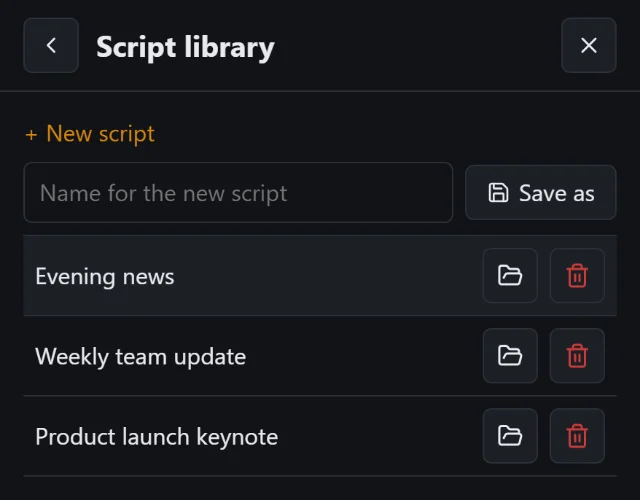
- + New script clears the box for a fresh script (you're asked if it has unsaved changes). The prompter keeps its script until you send the new one.
- Save as saves what's in the box as a new script, under the name you type beside it.
- The load button (the folder) opens a script into the box and sends it to every screen straight away; playback stops and goes back to the top.
- The delete button (the bin) removes a script from your library for good. The script box and the prompter keep their text.
To rename a script, open it and change its title above the script box, then save. The Free plan keeps three scripts; Pro keeps up to 500.
Playback
The playback bar runs along the bottom of the controller. Every screen and the remote follow it.
| Button | What it does | Key |
|---|---|---|
| ▶ Play / ❚❚ Pause | Scrolls the script at the set speed, or stops it. | Space |
| ◀ Reverse | Scrolls backwards quickly, to get back to a place. Press again to stop. | Shift Space |
| Line (back, forward) | Moves one line back or forward. | ← → |
| Top | Goes back to the start of the script. | Home |
| Sync | With the script box focused: moves the prompter to where your cursor is. With the preview focused: moves your cursor to the line being read. | Alt J |
| Speed | From 0 to 40, in steps of 0.5. It starts at 6. | ↑ ↓ |
Speed is a relative number: try 6, then adjust with ↑ and ↓ while you read. It can be changed during playback. Reverse always runs at the same quick speed, whatever the speed is set to.
Under the preview, the Progress slider shows how far through the script you are, and moves it when you drag it. While playback is paused you can also drag, swipe or scroll the preview itself to move the script on every screen.
Playback pauses by itself at the end of the script; pressing play there starts again from the top. Sending a new script stops playback and goes back to the top.
On a narrow screen, such as a phone or a small tablet, the controller shows one panel at a time: switch between Script and Prompter with the tabs at the bottom.
Appearance
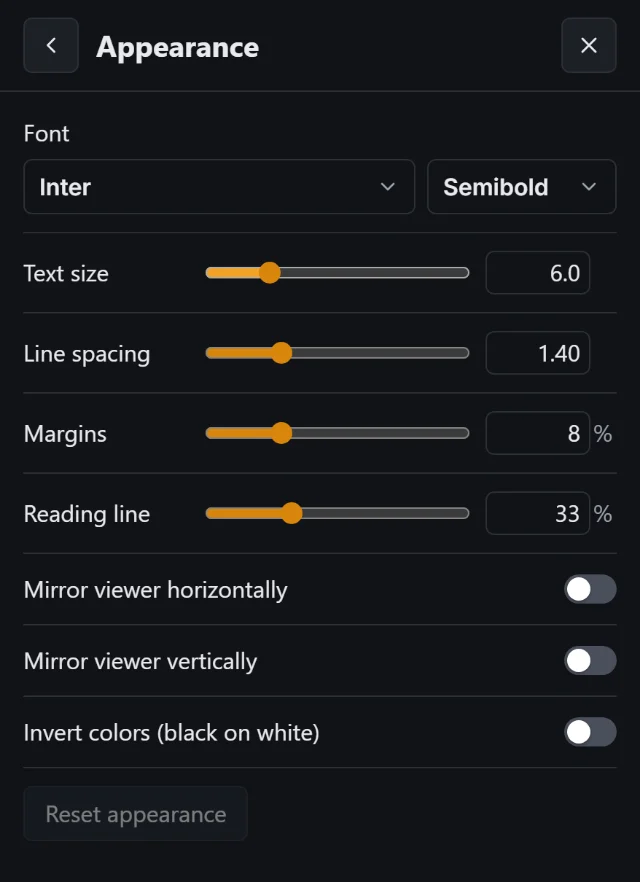
In the menu, under Appearance. These settings apply to every screen at once. A screen can still mirror or invert itself on its own (see Screens).
| Setting | Range | Starts at |
|---|---|---|
| Font | 12 fonts. Free has Inter, Roboto and Atkinson Hyperlegible; Pro has all 12. | Inter |
| Font weight | Light to Black, depending on the font | Semibold |
| Text size | 2 to 20, as a share of the screen's width | 6 |
| Line spacing | 1 to 2.5 | 1.4 |
| Margins | 0 to 30% of the width, on each side | 8% |
| Reading line | 10% to 90% down from the top | 33% |
| Mirror viewer horizontally, Mirror viewer vertically Pro | On or off | Off |
| Invert colors (black on white) | On or off | Off |
The reading line is the amber line with the arrow: read the line beside it, and the text scrolls up to meet it. Put it about a third of the way down so you can see what's coming. Reset appearance puts everything back to how it started.
Screens
Any device with a browser can be a screen: the monitor under prompter glass, a tablet on the floor, a laptop, the director's monitor. To open one, use the viewer link shown above the preview in the Live panel:
- Copy it and open it on the screen, or
- choose the QR button beside it and scan the code with the screen's camera (a tablet or phone).
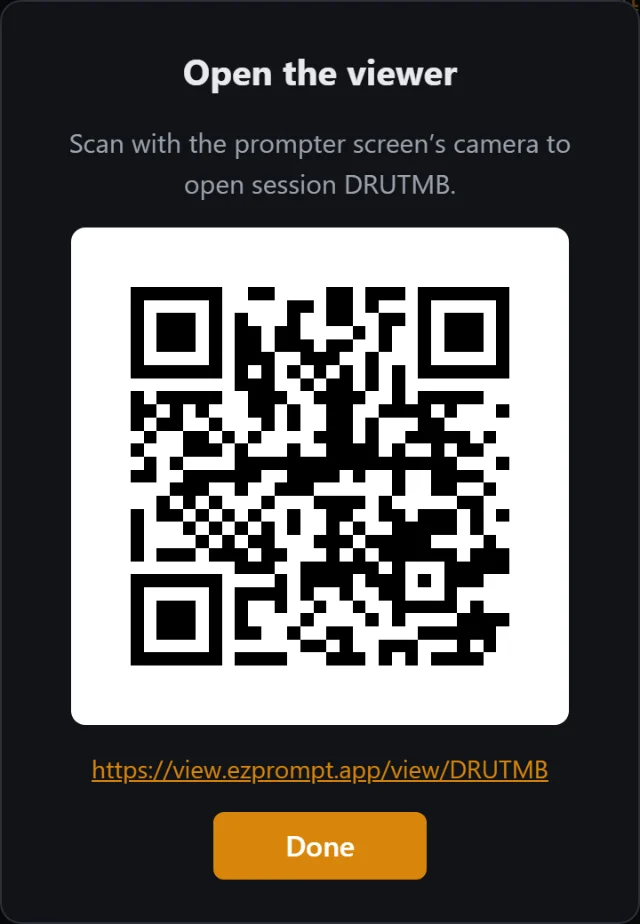
A screen needs no account. It shows Waiting for a script… until you send one, then follows the controller's script, position, speed and appearance. The Live panel counts the screens that are connected. Screens stay awake while they show the script, where the browser allows it.
Setting up one screen
Move the mouse or tap a screen to show its toolbar (it hides again after a few seconds). Its settings apply to that screen only, and stay after a reload:
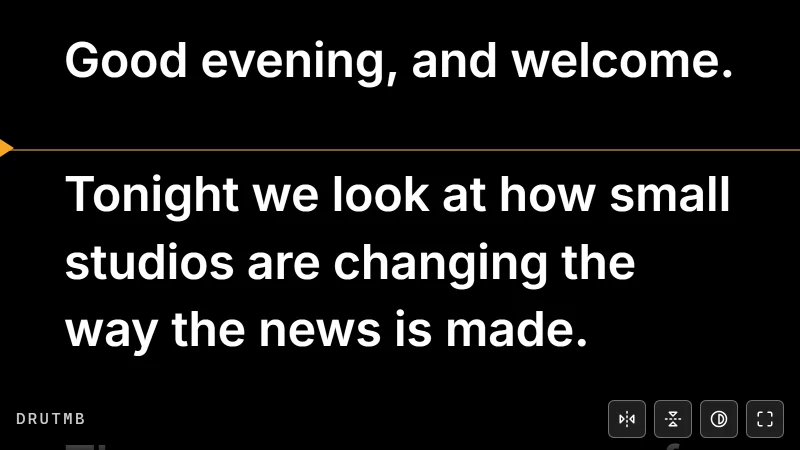
| Button | Key |
|---|---|
| Mirror horizontally, for prompter glass Pro | H |
| Mirror vertically Pro | V |
| Invert colors: dark text on white | I |
| Full screen | F |
| Follow controller: drop this screen's own settings |
So the screen under the glass can be mirrored while the director's monitor reads normally. iPhone doesn't let web pages go full screen, so the Full screen button isn't there.
How many screens
Free shows the script on one screen at a time, and Pro on as many as you like. The preview in your controller doesn't count. On Free, a second screen sees This prompter is already on as many screens as its plan allows. Close the first one, or upgrade.
Phone remote Pro
The remote lets someone else, such as an assistant or a floor manager, run playback from their phone. They don't need an account, and they can't change the script or how it looks.
- In the menu, choose Share remote, then Create link.
- Copy the link and send it, or let them scan the QR code with their phone.
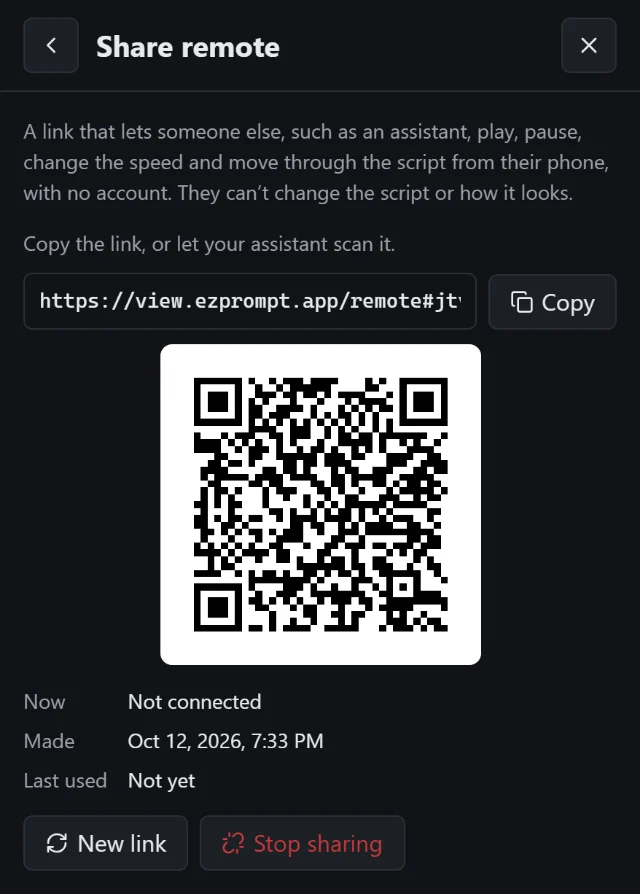
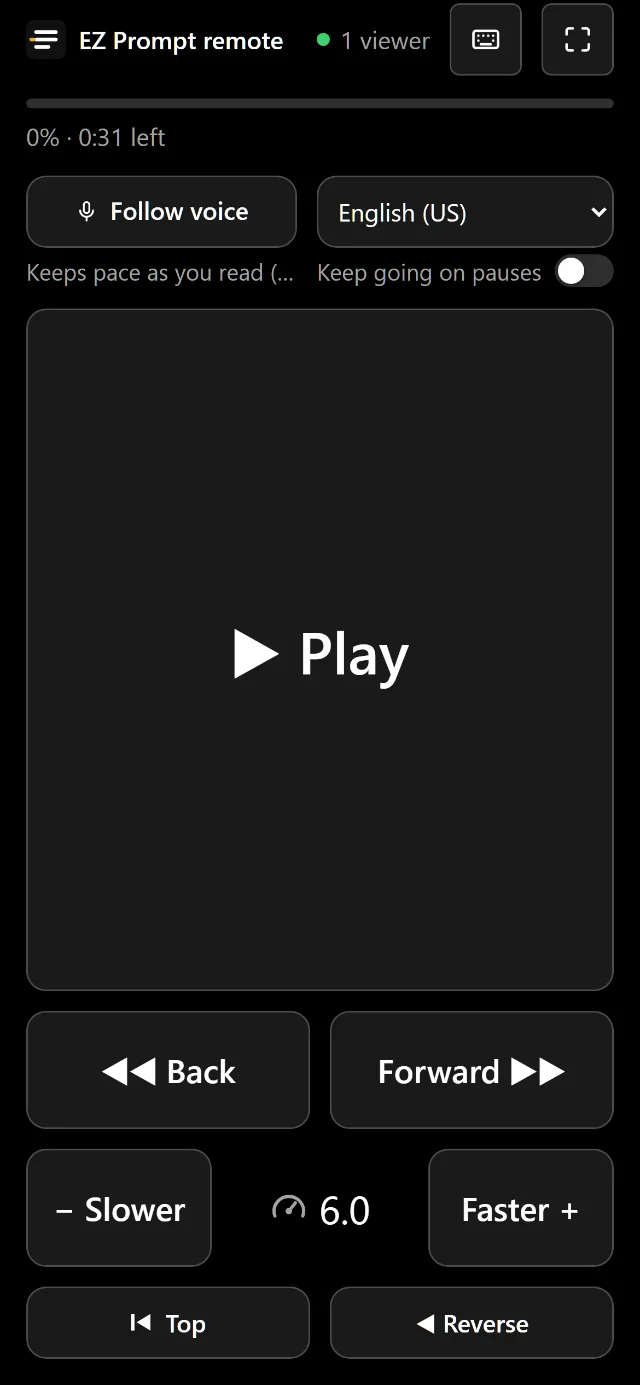
The remote shows how far through the script you are and how long is left, and has:
- a large ▶ Play / ❚❚ Pause button;
- ◀◀ Back and Forward ▶▶, three lines at a time;
- − Slower and Faster + around the speed (hold to keep changing it);
- Top and ◀ Reverse;
- Follow voice (see below), and buttons for clicker keys and full screen at the top.
You have one remote link. It always reaches your current session, even after your session's code changes. Under the link you can see whether a remote is connected, and when the link was made and last used. New link replaces it (the old one stops working and disconnects whoever uses it); Stop sharing turns it off. A link that isn't used for 30 days stops working by itself.
Follow voice Pro
On the phone remote, Follow voice listens as you read and keeps the prompter at your pace: it speeds up when you do, eases to a stop when you pause, and picks up again when you carry on. It follows the words of your script, so it knows where you are.
- Open the remote link on the phone you'll keep near you.
- Pick your language in the list beside the button.
- Choose Follow voice and allow the microphone. When it says Listening… start reading the script., start reading.
- Choose Stop following to finish: the prompter pauses, and the speed goes back to what it was.
Turn on Keep going on pauses if you'd rather the prompter kept moving at your pace through a pause. If you jump to another part of the script, it finds you there after a few seconds.
Following stops when someone else pauses or reverses, or when the remote's page goes into the background. The speed buttons are off while it follows.
Browsers and languages
- It uses your browser's own speech recognition: in Chrome, your voice goes to Google; in Safari and on iPhone and iPad (in any browser), to Apple. Firefox has none, so the remote doesn't offer Follow voice there.
- Languages: English (US), English (UK), Hrvatski, Srpski, Bosanski, Slovenščina, Deutsch, Français, Italiano and Español. Apple's recognition doesn't offer Srpski, Bosanski or Slovenščina.
- It needs an internet connection.
Clickers, pedals and remote keys
A presenter clicker, a foot pedal or a media remote works like a keyboard, so you can choose which of its buttons does what: in the menu, under Clicker & remote keys (on the phone remote, the keyboard button at the top). Choose Add key beside an action, then press the button on your clicker. Click a key to remove it; Reset to the default keys puts them back.
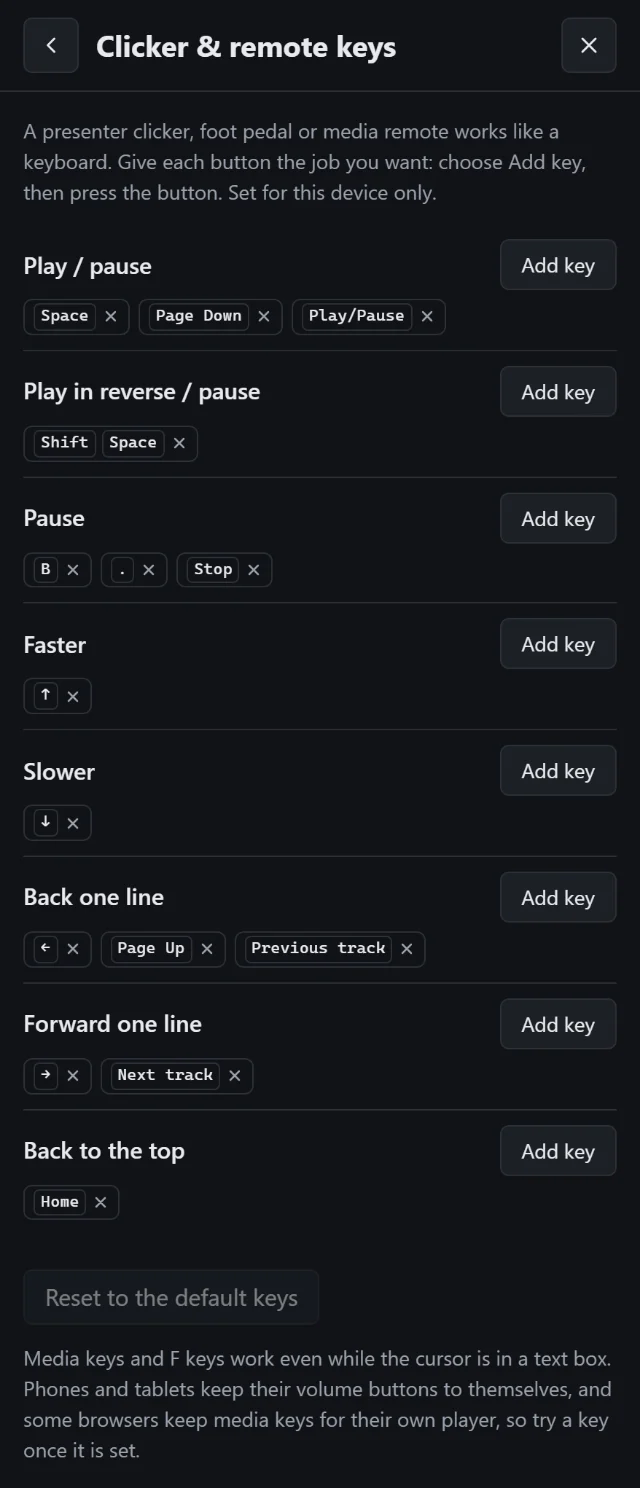
The keys are set for each device. These are the defaults:
| Action | Keys |
|---|---|
| Play / pause | Space, Page Down, the Play/Pause media key |
| Play in reverse / pause | Shift Space |
| Pause | B, ., the Stop media key |
| Faster, Slower | ↑, ↓ (0.5 at a time; hold to repeat) |
| Back one line, Forward one line | ←, Page Up, Previous track; →, Next track (three lines at a time on the remote) |
| Back to the top | Home |
Most clickers send Page Down and Page Up, so they play, pause and go back without any setup. Keys with Ctrl, ⌘ or Alt, and Tab, belong to the app and the browser, so they can't be chosen. Playback keys don't act while you're typing in the script box, except media keys and F keys. Phones and tablets keep their volume buttons to themselves.
Keyboard shortcuts
Besides the playback keys above, the controller answers to these. The full list is also in the menu, under Keyboard shortcuts. On a Mac, use ⌘ for Ctrl.
| Keys | What they do |
|---|---|
| Alt J | Script focused: jump the prompter to the cursor. Prompter focused: jump the script to the cue. |
| Alt K | Switch between the script and the prompter |
| Ctrl F | Find in the script (while it has the orange border) |
| Ctrl S | Save the script (while it has the orange border) |
| Alt N | Notes mode on / off; selected text becomes a note, or script text again |
| F, H, V, I | On a screen: full screen, mirror horizontally, mirror vertically, invert colors |
Install the app on a phone or tablet
Installed, EZ Prompt opens full screen from its own icon on your home screen, like any other app. On a phone or tablet, the menu's Install the app shows the steps for your browser.
iPhone and iPad
- In Safari, tap the Share button in the toolbar. If it isn't showing, tap ••• first.
- Scroll down and tap Add to Home Screen.
- Tap Add.
Other browsers on iPhone may offer the same in their Share menu; if not, open the page in Safari. The installed app keeps its own sign-in, so you sign in once more there, and a script that isn't saved doesn't come along: save it to your library first.
Android
- Open the browser's menu (⋮ or ☰).
- Tap Install app or Add to Home screen.
- Tap Install or Add.
In Chrome, the menu's Install the app page may show an Install EZ Prompt button that does it in one go. If the page is open inside another app (a link from mail or chat), open it in your browser first.
Plans and billing
The Free plan runs the whole prompter on one screen, with three saved scripts and three fonts. Word import and export, notes, keyboard and clicker keys, and inverted colours are all on Free. Pro adds:
- Any number of screens on one session
- Mirroring for teleprompter glass
- A phone remote to share, with Follow voice
- Import from Google Docs
- All 12 prompter fonts
- Up to 500 scripts in your library
Pro is €9.99 a month or €79.99 a year (see pricing).
Upgrading
Choose Pro from the menu's Plan & billing, from any Pro button in the app, or from the website. Pro is sold for us by Lemon Squeezy, the merchant of record: they run the secure checkout, take the payment and charge any sales tax or VAT. Pro switches on a few seconds after the payment goes through.
Managing or cancelling
In Plan & billing, Manage subscription opens Lemon Squeezy's page, where you can change between monthly and yearly, update your card, download invoices or cancel. When you cancel, Pro stays on until the end of the period you've paid for. If Pro isn't right for you, write to support@ezprompt.app within 14 days of a payment and we'll refund it.
When Pro ends
- Mirroring turns off, and a Pro font changes to Inter.
- A shared remote link is paused, and works again if you take Pro again.
- Screens that are already open stay connected; new ones follow Free's limit.
- Your library keeps every script; you can't add new ones while you're over Free's three.
Troubleshooting
The sign-in code doesn't arrive, or doesn't work
Check your spam folder, and that the email address is right. A code works for 10 minutes and for five tries; after that, use Resend code (once a minute). Signing in with Google avoids the email altogether.
A screen says “Session not found”
The link is for a session that has closed, usually after 12 hours with nothing connected. Open the app, copy the viewer link from the Live panel again, and open it on the screen.
A screen says it's “already on as many screens as its plan allows”
The Free plan shows the script on one screen at a time. Close the other screen's page, or upgrade to Pro for any number of screens.
Follow voice doesn't hear me
- “The microphone is blocked”: allow the microphone for the site in the browser's settings, then try again.
- “Speech recognition is off on this device, or for this language”: on iPhone, turn on Dictation and add the language under Settings → General → Keyboard → Dictation Languages.
- “This language isn't supported on this device”: pick another language from the list.
- Firefox has no speech recognition: use Chrome, or Safari.
Importing from Google Docs doesn't open
Allow pop-ups for dash.ezprompt.app in your browser, then try again. On Safari, iPhone and iPad the picker opens in a new tab; when it says so, close it and go back to EZ Prompt.
“Connection lost” or “Too many connections”
Every screen stays in step through our server, so each needs an internet connection; screens reconnect by themselves when it comes back. “Too many connections from your network” means many prompter tabs are open from one network: close the ones you don't need, then reload.
Something else?
Write to support@ezprompt.app and tell us what you see, on which device and browser. We're glad to help.